
The Access Control page controls access to an HTTP or HTTPS port through IP rules and Maintenance. Open Services, choose your service's Action → Ports, then the port's Action → Access Control. Changes require write access to the service.
Each tab has an On or Off indicator. IP rules is On when the port has configured IP rules; Maintenance follows its enable switch. An IP allowance does not itself bypass maintenance: configure an exclusion for that purpose.
Maintenance
Use Access Control → Maintenance to enable maintenance mode. Eligible requests receive a maintenance page instead of reaching your backend. Turn it off to restore normal backend access.
The default maintenance page works without additional configuration. To customize it, enable the custom page and enter HTML or an optional redirect URL, then choose Submit. The page content and redirect settings are retained independently of the maintenance enable switch. See Error Pages for supported redirect variables.
Maintenance Exclusions opens an ordered IP rule list for clients allowed to reach the backend during maintenance. Without exclusions, maintenance applies to everyone. An exclusion only bypasses maintenance: the main IP rules still apply.
To display a scheduled outage notice, select Enable Maintenance Mode, tick Enabled under Maintenance page, and enter your HTML. Choose Submit, reload, and confirm the switch and saved HTML. When finished, clear Enable Maintenance Mode and submit again; the custom page remains available for the next maintenance window.
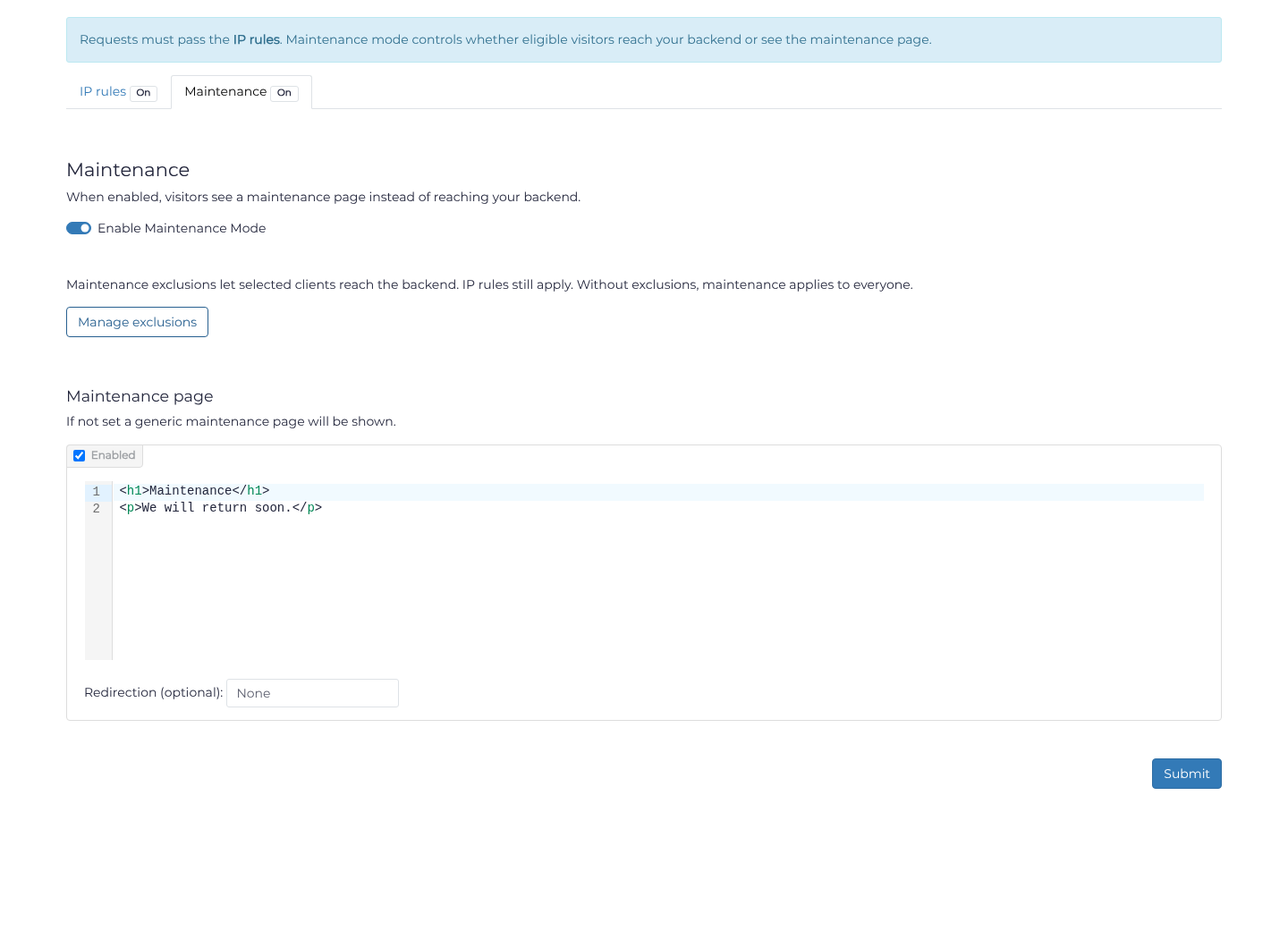
Existing links to the separate maintenance page open this tab automatically.
IP rules
IP rules allow or deny individual client addresses and CIDR ranges. By default, no custom rules are deployed and IP access is allowed. Other filtering settings still apply.
HTTP and HTTPS rule ordering
HTTP rules are evaluated from top to bottom. The first matching rule wins. Use the Up and Down actions to retain the intended order, and place specific exceptions before broader rules.
For example:
1) deny   192.168.1.1/32
2) allow  10.1.0.0/16
3) allow  192.168.1.0/24
4) deny   0.0.0.0/0
This denies 192.168.1.1, allows the two listed networks except that address, and denies other IPv4 clients. Add appropriate IPv6 rules when your service uses IPv6.
Choose Add Rule, enter its type, CIDR and optional comment, and save it. Use Test an IP to check how the current IP rules classify a client. An allowed result confirms only the IP rule decision, not live connectivity or other filtering.
For example, add Deny 192.0.2.10/32 with comment Blocked client, then Allow 192.0.2.0/24 with comment Office network, saving each rule. Use the denial's Action → Up to place it first. Reload, then test 192.0.2.10 (Deny) and 192.0.2.20 (Allow). These are documentation addresses; use your actual client networks. This pair does not deny other networks: a final deny-all rule is needed for an allowlist, after checking that your own access is covered.
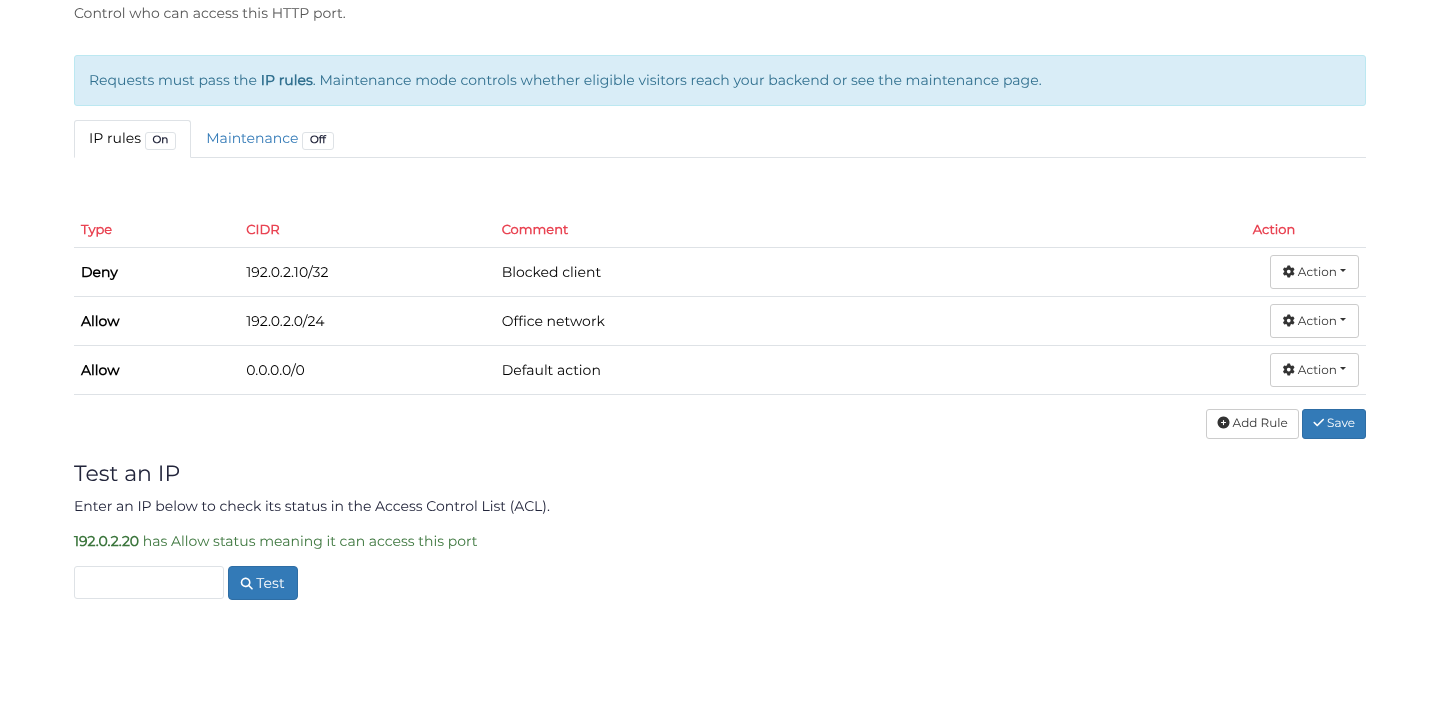
IP allow rules do not bypass other filtering.
Address and CIDR format
CIDR notation combines an IP address with a prefix length:
| CIDR | Matches |
|---|---|
192.0.2.10/32 | One IPv4 address |
192.0.2.0/24 | 256 IPv4 addresses |
10.0.0.0/8 | The private 10.x.x.x range |
0.0.0.0/0 | All IPv4 addresses |
2001:db8::1/128 | One IPv6 address |
2001:db8::/32 | An IPv6 network |
::/0 | All IPv6 addresses |
An IPv4 address without a prefix defaults to /32. Use /128 for an individual IPv6 address. See CIDR for more examples.
TCP and UDP access lists
TCP and UDP ports retain their Layer 4 ACL interface. In Allow mode, only listed addresses or networks can connect. In Deny mode, listed addresses or networks are blocked and other clients can connect. The HTTP maintenance tab does not apply to these ports.
Use Layer 4 Rules for packet inspection, BPF matching, rate limiting, or TCP option matching. For HTTP request matching, see Layer 7 Rules.
Blocklists
Preset IP blocklists cover sources such as TOR exit nodes, VPN providers, and hosting networks. Manage these through the port's filtering settings. They remain separate from the main IP rules and the On/Off badge on this tab. See IP Blocklists.
