
Protecting a Starbounder server with a DDoS Protected Reverse Proxy
This tutorial covers reverse-proxy protection for a public Starbound multiplayer server. Check the configuration fields and ports against your installed server version.
Step 1
Ensure that your server is running and connect-able. The computer you wish to run this on will need to be publicly accessible. If you are behind a NAT'ing connection (e.g home connection) this means that you will need forwarding for the required game port.
We advise that you test this by getting a trusted individual outside your network to connect to your backend IP and confirm this.
Step 2
Keep host and provider firewalls enabled. Allow the game port from the current Backend Communication IP Addresses shown in the Dashboard.
Step 3
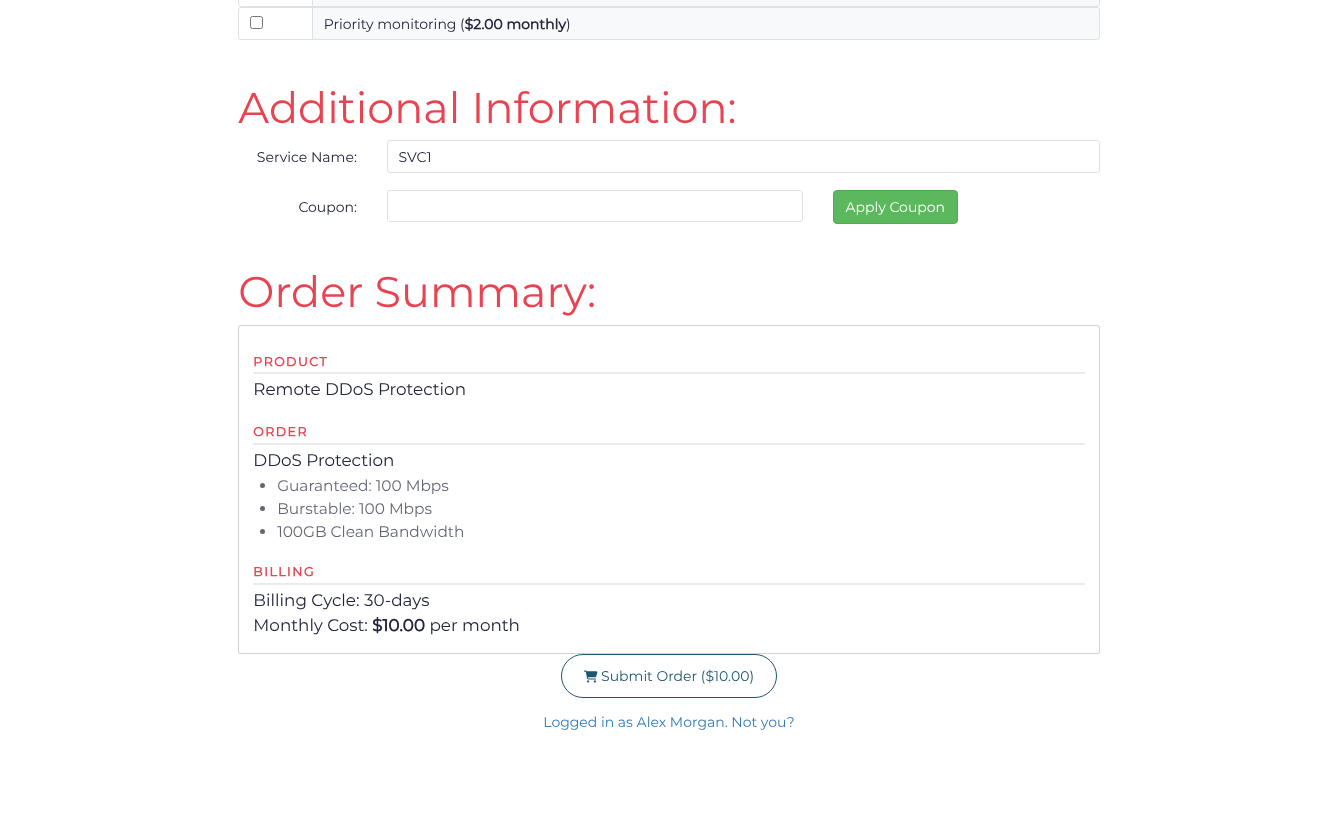
Choose a billing cycle, a service tier/network and a clean-bandwidth allowance on the DDoS protection page, then click Continue to Checkout. On Complete Order, review the filtering region when offered, enter a Service Name, and review the Order Summary before submitting your order. If you already have a suitable active service, continue with that service. Choose a location close to your backend and users.
Step 4
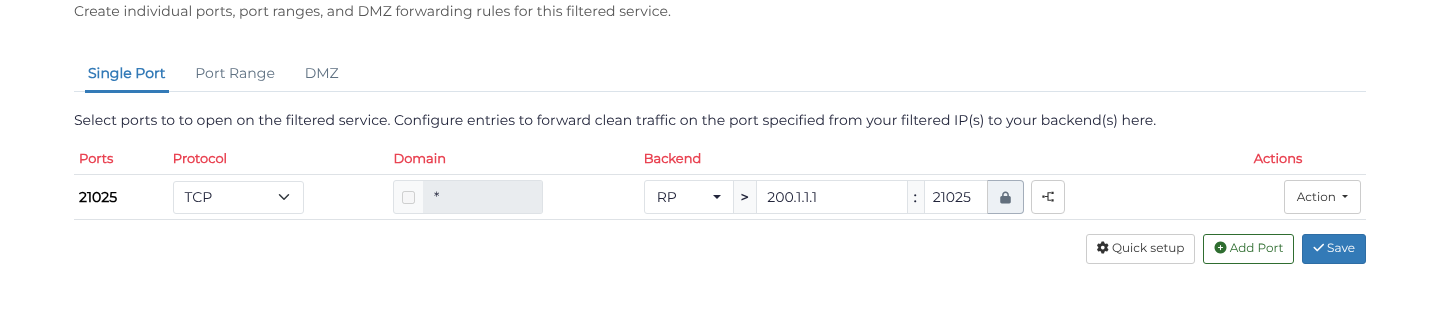
Go to your Dashboard, then on the IP, open the Action menu and select Ports. From here you can manage the ports.
Under Single Port, click Add port manually when Add your first port is shown; otherwise click Add Port. Set Port start to 21025, Protocol to TCP, and Backend method to Reverse Proxy. Enter your server's IP in Backend address and 21025 in Backend port. Click Save and check the saved row.
Step 5 - Testing
After waiting for the changes to take effect (see the progress bar) try to connect via your proxy IP. If you have issues see the troubleshooting section below.
Debugging / Notes:
If you have slow performance ensure that the proxy location you have chosen is close to your server
For connection failures or interruptions, check the backend listener and the relevant host and provider firewall rules. Include the affected port and test results when contacting support.
