
A mitigation service brings together your DDoS protection, protected IP addresses, traffic-forwarding configuration, and billing plan. Your application runs on a backend server. Traffic reaches the service's protected IP address, passes through the configured filtering and forwarding, and is delivered to that backend.
What belongs to a service?
| Component | Purpose |
|---|---|
| Protected IP addresses | Public addresses used to reach your protected applications. A service may have multiple addresses and locations. |
| Ports and port ranges | Define which TCP or UDP ports to forward, the protocol to use, and the backend destination. |
| DMZ entries | Forward remaining TCP and/or UDP traffic to a backend. |
| Backends | Servers running your applications. A forwarding configuration can use multiple backends through load balancing. |
| Tunnels | GRE or IPIP connections used by tunneled forwarding configurations to reach a backend. A port or DMZ must reference the tunnel for it to be used. |
| Filtering settings | Rules and protection settings applied at IP or port level. Available controls depend on the protocol; HTTP/HTTPS ports also have application-specific options. |
For example, a website can use an HTTPS port to forward requests to its web server. A tunneled application instead uses a port that references a GRE or IPIP tunnel configured on its backend.
See Port Types, GRE and IPIP Tunnels, and IP Address Settings for configuration details.
DNS records direct your domain to the service. They are managed separately from ports and tunnels. See DNS Basics and Setting up a Website.
Service Overview
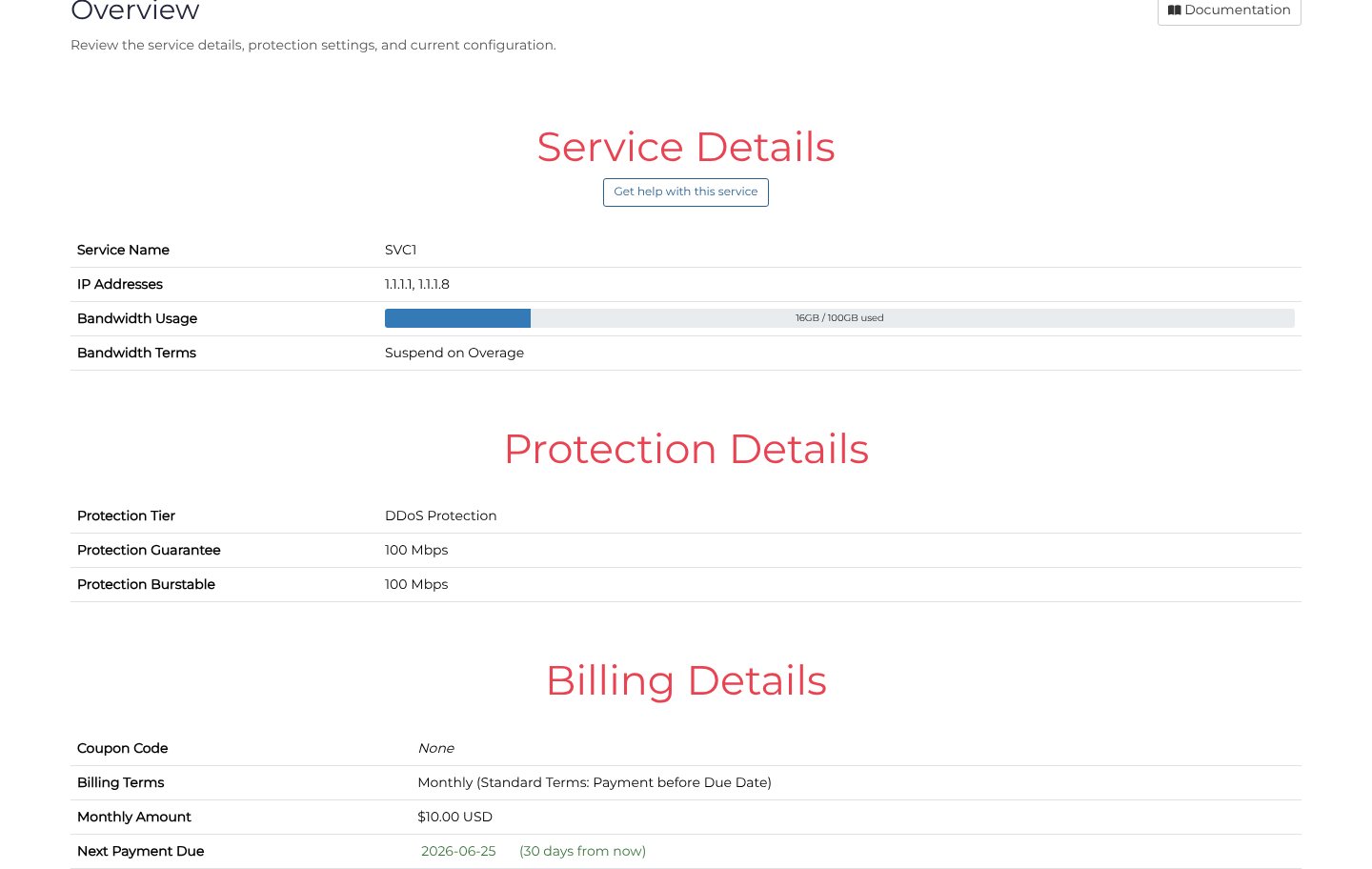
Open Client Area → Services, then select Action → Overview beside the service to review:
- Service Details: the service name, protected IP addresses, and bandwidth usage and terms where applicable.
- Protection Details: the protection tier and its displayed guaranteed and burstable capacity.
- Billing Details: billing terms, monthly amount, coupon information, and the next payment due or PAYG information, as applicable.
- Domain Setup: DNS examples for directing your domain to the service. A blank name or
@usually represents the root domain, depending on your DNS provider. - IP Addresses: the protected addresses, locations, filtering servers, and communication IPs. Use the Domain Setup guidance when configuring public DNS.
Use Ports, Filtering, and Tunnels to review or change the corresponding configuration. See Service Tiers for more about protection levels.
Billing and renewal
Service charges are deducted from your account balance:
- Monthly Billing: payment is taken in advance, with renewal every 30 days.
- Pay As You Go (PAYG): charges are deducted at frequent intervals for bandwidth usage and a prorated share of the monthly service fee.
Check Billing Details on Overview for your service's terms and renewal information. See Billing Methods for adding funds, payment options, and cancellation, and Calculating Bandwidth for how usage is measured.
To cancel a service, use its Cancellation page and complete the email confirmation process.
Changing the display name
- Open the Services list and select the service's editable name.
- Enter a recognizable name, such as
SVC1 Sydney, and select Save service name. Reload the list to confirm it was saved. - To restore the default name, clear the field and save again.

The default name is usually the protected IP address or a Lease #… label. Changing the display name leaves the service's addresses and configuration unchanged.
Service Events
On the Services page, scroll to Event Log to see recent management and deployment actions. Select View More to open the full Events page.
Entries show the request time, action, recorded user and deployment progress for each server. One action can create several events as a change is applied to different servers; related events may appear together in a single row.
Select an action description on that page to open its details. These show the grouped events, applied servers, creation and completion times, progress, and recorded users. Use Back to return to Events or the service link to return to Overview.
Deployment completion indicates that a change has been applied; check your application separately to confirm it works as expected.
Use Events to review configuration changes. For requests, errors, bans, and attack activity, use Service Logs.
